
I spent three weeks thinking I was losing my mind because my stream looked like a slideshow, even though I had a high-end PC and a decent connection. I kept following those generic “pro streamer” tutorials that told me to buy more lighting or a better mic, when the real issue was that I didn’t actually know how to set up a capture card without introducing massive input lag. I was playing a frame-perfect fighting game with a delay that made every combo impossible, essentially sabotaging my own rank because I was too lazy to check my signal chain. It wasn’t a hardware power issue; it was a configuration nightmare.
I’m not here to sell you a $500 streaming bundle or tell you that you need a studio-grade setup to get started. This guide is about the actual mechanics: which ports to use, how to avoid the dreaded black screen of death, and how to ensure your frame timings stay consistent. I’m going to show you the exact way to route your signal so you can stop fighting your hardware and start actually playing the game. No fluff, just the settings that matter.
Table of Contents
Guide Overview
Tools & Supplies
- Computer or Laptop with USB port and sufficient processing power
- HDMI Cable (to connect source to capture card)
- Capture Card (internal or external USB model)
- Gaming Console, Camera, or Second PC (the signal source)
- HDMI Cable (to connect capture card to monitor/TV)
Step-by-Step Instructions
- 1. Unbox the hardware and find your HDMI cables. Don’t go hunting for the “gold-plated” garbage you bought on a whim; just grab any standard high-speed cable you have. You need one to go from your console to the input on the card, and another to go from the card’s output to your monitor. If you try to use an old cable from a 2012 DVD player, you’re going to deal with constant signal drops that’ll drive you insane.
- 2. Plug the capture card into your PC. If you’re using a desktop, stop using the front panel USB ports. They’re usually connected to a flimsy internal hub that can’t handle the bandwidth. Plug it directly into the motherboard ports on the back of the case. If you’re on a laptop, make sure you’re using a USB 3.0 or 3.1 port; if you plug this into a legacy USB 2.0 slot, your frame rate will look like a slideshow from the nineties.
- 3. Connect the video loop. Take the first cable and run it from your console’s HDMI out into the “IN” port on the card. Take the second cable and run it from the “OUT” port on the card to your monitor. This is the “passthrough” method. It’s the only way to actually play the game without feeling like you’re controlling a character through molasses due to processing lag.
- 4. Fire up your capture software. Most people default to OBS, which is fine, but don’t just click “Start Recording” and hope for the best. You need to go into your Sources, add a Video Capture Device, and select your card from the dropdown. If the screen is black, don’t panic; it’s usually just a HDCP handshake issue. Go into your console settings and disable HDCP immediately, or the card won’t see a single pixel.
- 5. Fix your audio routing. This is where most guides fail you. Your PC is going to try and treat the capture card like a pair of headphones, which means you won’t hear your game through your actual headset. In OBS, go to the Advanced Audio Properties and set your capture card to “Monitor and Output.” If you don’t do this, you’ll be playing in total silence while your stream hears everything perfectly.
- 6. Match your refresh rates. Check your console’s output resolution and make sure your OBS canvas matches it exactly. If your console is pushing 60Hz and your software is trying to force 30Hz, you’re going to get screen tearing that makes competitive play impossible. It’s a small setting, but it’s the difference between a clean capture and a mess.
Reducing Input Lag With a Proper Hdmi Passthrough Connection
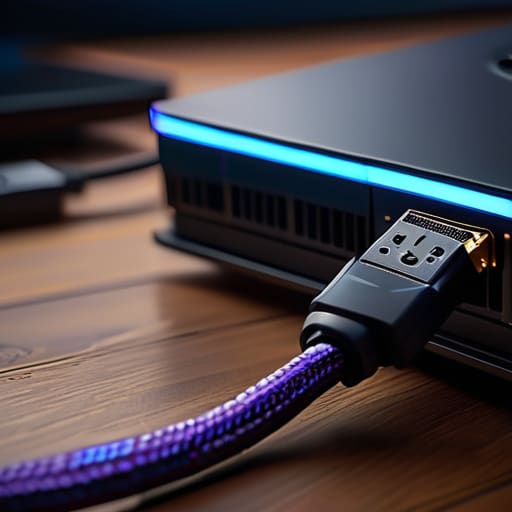
If you’re trying to play a frame-perfect fighting game or a soulslike through your capture card’s preview window, you’re already losing. Most people think they can just play the game through OBS, but even the best hardware introduces a delay that’ll ruin your muscle memory. The only real fix is a proper HDMI passthrough connection. You need to run the signal from your console into the “In” port of the card, and then run a second, dedicated cable from the “Out” port directly to your monitor. This bypasses the processing delay entirely, letting you see the game in real-time while the card handles the recording in the background.
Don’t get caught in the trap of thinking a higher bitrate or a more expensive external video capture device setup will solve latency issues. It won’t. If your monitor is plugged into your PC instead of the passthrough port, you’re playing in a ghost world. I’ve spent way too many hours in ranked matches wondering why my parries weren’t landing, only to realize my streaming hardware configuration was fundamentally flawed. If you aren’t seeing the action on a direct connection, you aren’t playing the game; you’re playing a delayed replay.
Optimizing Obs Studio Capture Card Settings for Zero Waste Streams
Once you’ve sorted your HDMI passthrough connection to keep your own gameplay snappy, you have to fix the mess that is OBS. Most people just plug the device in, hit “Add Source,” and call it a day. That’s how you end up with a stuttering feed that looks like a slideshow. Go into your properties and make sure your Video Format is set to NV12 or YUY2. If you leave it on anything else, your CPU is going to scream, and your frames will drop the second a fight gets intense.
Don’t bother with the “Auto” setting for your resolution; it’s a trap. Manually lock your base and output resolutions so the software isn’t constantly trying to recalculate your scaling mid-stream. If you’re doing a serious gaming console recording setup, check your color space settings too. Set it to 709 and the color range to Limited—I know, it sounds counterintuitive, but setting it to Full often results in crushed blacks that make your game look like a muddy mess to your viewers. Keep it simple, keep it locked, and stop letting the software guess what you want.
Five things people get wrong before they even hit record
- Check your USB port. If you’re plugging a high-end capture card into a USB 2.0 port because it’s “easier,” you’ve already lost. You need USB 3.0 or 3.1. If it’s not blue or doesn’t say SS next to it, it’s going to bottleneck your bitrate and make your footage look like a pixelated mess from 2005.
- Match your refresh rates or suffer. If your console is outputting at 60Hz and your capture card is trying to pull 59.94Hz, you’re going to get micro-stuttering. It’s subtle, but if you’re trying to play something frame-perfect, you’ll feel it. Force them to sync in your display settings before you even open OBS.
- Stop ignoring the audio mixer. I’ve seen too many people struggle with “no sound” because they assumed the HDMI passthrough would automatically route the audio to the desktop. Check your Windows Sound Control Panel. If the capture card isn’t set as a “Recording Device,” you’re just filming a silent movie.
- Monitor your thermal load. These cards get hot. If you’re stacking them behind a console in a closed cabinet, the chip is going to throttle. When it throttles, your frames drop. Keep them in the open air; I don’t care if it looks messy on your desk.
- Test the “Passthrough” lag separately. Don’t just assume your monitor is showing you what’s actually happening. Plug a secondary device into your monitor if you can, or use a high-speed tester. If there’s even a millisecond of delay between your controller input and the passthrough screen, your “pro” setup is actually just a glorified slideshow.
The Bottom Line
If you feel even a millisecond of delay between pressing a button and seeing the action, your passthrough is likely botched or your settings are eating your frames; check your hardware connection before you start tweaking software.
Stop using default OBS presets. They’re bloated and inefficient. Manually set your resolution and frame rate to match your source exactly so you aren’t wasting CPU cycles on scaling.
A capture card isn’t a magic fix for a bad setup. If your cables are cheap or your signal path is cluttered, you’re just recording lag. Keep the signal path direct and the settings specific.
Stop Overthinking the Setup
Look, if you’ve followed these steps, you’ve already done more than most people who just plug everything in and wonder why their gameplay looks like a slideshow. You’ve bypassed the generic “plug and play” nonsense by prioritizing a direct HDMI passthrough to kill that input lag and actually fine-tuning your OBS settings so you aren’t wasting bits on a garbage signal. The goal wasn’t to build a NASA-grade studio; it was to make sure that when you hit a frame-perfect input, the capture card actually sees it. Once you’ve verified your signal is clean and your latency is minimal, the technical side of the equation is effectively solved.
At the end of the day, the hardware is just a tool to get your skill onto the screen without the gear getting in the way. I’ve spent way too many hours troubleshooting settings that didn’t even matter, only to realize that the best setup is the one that stays completely invisible while you play. Stop tweaking the sliders and start actually playing the game. You have the signal, you have the settings, and you have the frames. Now go actually use them.