
Stop listening to the “pro” streamers telling you that you need a $4,000 liquid-cooled rig and a dedicated dual-PC setup just to go live. It’s total nonsense. I spent three months trying to follow those bloated, over-engineered tutorials, only to realize I was chasing hardware upgrades instead of actually fixing my software bottlenecks. Most of those “expert” guides are just glorified shopping lists designed to sell you more gear you don’t need. If you’re actually trying to figure out how to stream without killing your frame rate, you don’t need a second PC; you need to stop letting your encoder fight your GPU for every scrap of resources.
I’m not here to give you a lecture on bitrates or a list of expensive peripherals. I’ve spent enough hours staring at stuttering telemetry data to know exactly where the friction is. I’m going to show you the actual settings that matter—the ones that stop your game from turning into a slideshow the second you hit ‘Start Streaming.’ No hype, no filler, just the specific configurations I use to keep my input lag low and my frames stable.
Table of Contents
The Cpu vs Gpu Encoding War Picking Your Engine
Most people treat encoding like a “set it and forget it” menu option, but that’s how you end up with a stuttering mess. You’re basically choosing between two different ways to tax your hardware. If you go with x264, you’re leaning on your processor. This is great for image quality if you have a monster CPU, but for most of us, it’s a death sentence for your actual game performance. If your CPU is busy trying to turn your gameplay into a video stream, it’s not focusing on the game itself, and that’s where you see those massive frame drops.
The alternative is CPU vs GPU encoding, usually via NVENC if you’re on an NVIDIA card. This offloads the heavy lifting to a dedicated chip on your graphics card. It’s the gold standard for reducing gaming latency while streaming because it lets your GPU focus on rendering the frames while the encoder handles the broadcast. If you’re on a budget rig, don’t try to brute-force a high-quality CPU encode; you’ll just turn your boss fight into a slideshow. Stick to hardware acceleration and save your processing power for the actual inputs.
Preventing Dropped Frames in Obs Before the Lag Hits
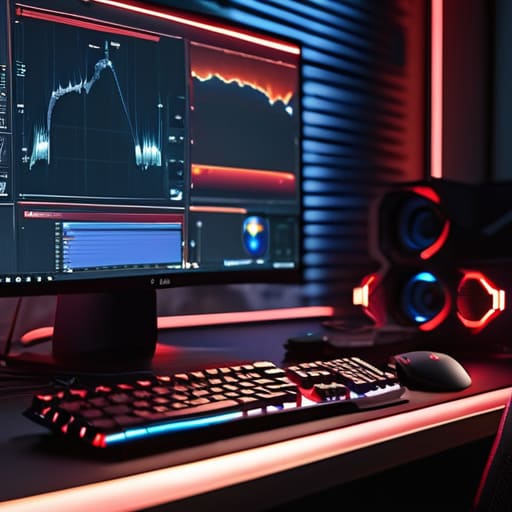
If you’re seeing those little red squares in the OBS status bar, you’re already losing. Most people think dropped frames mean their internet is dying, but half the time, it’s actually your system choking on its own overhead. Before you start blaming your ISP, you need to check your network vs. rendering lag. If the stats show “dropped frames (network),” your bitrate is too high for your upload speed. If it says “dropped frames (rendering),” your GPU is literally too busy drawing the game to bother sending the video to the internet.
To fix this, stop letting Windows decide how much power your apps get. You need to run OBS as an Administrator every single time. It sounds like a chore, but it forces the OS to prioritize the broadcast over background tasks, which is the most effective way of preventing dropped frames in OBS when things get heavy. Also, go into your Windows Graphics Settings and manually set OBS to “High Performance.” If you don’t, the OS might try to throttle the encoder to save power, and that’s exactly when your stream turns into a stuttering mess mid-fight.
Stop Guessing and Start Optimizing: 5 Fixes That Actually Work
- Cap your in-game framerate. If your monitor is 144Hz but your PC is sweating to push 160fps, you’re wasting resources that your encoder needs. Cap it at 144 or even 120. It gives your system breathing room so the frames don’t drop the second a particle effect hits the screen.
- Run OBS as Administrator. I don’t care if you think it’s overkill. When you run as admin, Windows prioritizes OBS’s GPU access. It’s the difference between a smooth stream and your viewers watching a slideshow because your game decided it wanted all the power.
- Kill the bloatware. If you have Chrome open with twenty tabs, Discord running hardware acceleration, and a dozen RGB controllers fighting for CPU cycles, you’re asking for stutters. Close everything that isn’t the game or the stream.
- Check your Windows Game Mode settings. Most “pro” advice tells you to turn it off, but for modern Windows builds, you actually want it on. It helps the OS prioritize your game process so the background tasks don’t hijack your frame timing mid-fight.
- Stop using “High” presets for everything. If you’re struggling, drop your in-game shadows and volumetric lighting first. These are the biggest frame killers, and your viewers won’t notice the difference in shadow resolution, but they will definitely notice a frame drop during a boss transition.
The TL;DR for Not Tanking Your Performance
Stop using X264 if your CPU is already sweating; switch to NVENC or AMF immediately to offload the heavy lifting to your GPU’s dedicated encoder.
Run OBS as Administrator every single time, or Windows will deprioritize your stream and turn your high-stakes matches into a stuttering mess.
Check your “Process Priority” in OBS settings—set it to High so the system doesn’t choke your broadcast just because your game decided to spike.
Stop Guessing and Start Playing
Look, there isn’t a magic setting that turns a potato into a high-end rig, but there is a massive difference between being limited by your hardware and being limited by bad configuration. We covered the essentials: stop letting your CPU choke on encoding tasks if you have a dedicated GPU, and for the love of god, run OBS as an administrator so Windows actually prioritizes your stream. If you’ve balanced your bitrate against your upload speed and picked an encoder that doesn’t turn your gameplay into a pixelated mess, you’ve already done more than 90% of the people currently live-streaming. The goal isn’t to have the most expensive setup on Twitch; it’s to ensure that your actual gameplay is what people see, not a stuttering slideshow of dropped frames.
At the end of the day, the tech is just a tool to get your skill on display. I’ve spent enough hours watching streamers lose their minds because a sudden frame drop cost them a clutch play or a perfect speedrun split. Don’t let your settings be the reason you fail a boss pattern or miss a frame-perfect input. Get your settings dialed in, verify the stability, and then get out of the menus. The grind doesn’t care about your bitrate, but your viewers do. Now go play.