
Stop wasting your money on overpriced “gaming” thermal paste or those flashy liquid cooling kits that promise the moon but barely move the needle. Most tech influencers will tell you that you need a whole new build if your frames are dipping, but they’re usually just trying to sell you a way out of a problem that’s actually much simpler. If you’re sitting there wondering how to diagnose thermal throttling while your competitive match turns into a slideshow, you don’t need a hardware upgrade; you need to know if your silicon is actually choking on its own heat.
I’m not here to give you a lecture on thermodynamics or some vague “monitor your temperatures” advice that tells you nothing. I’m going to show you the exact way I track my clock speeds and core temps to see if my hardware is actually pulling back the moment the fans hit 100%. I’ll give you the specific tools and the real-world benchmarks to prove whether your performance drop is a software bug or a literal heat wall. No hype, just the data you need to stop guessing.
Table of Contents
Spotting Overheating Symptoms in Laptops and Desktops

If you’re playing a high-fidelity title and suddenly your frame rates drop from a steady 144 to a stuttering 40, don’t immediately blame the game’s optimization. Most of the time, it’s your hardware choking. In desktops, you’ll usually notice the fans ramping up to a jet-engine whine right before the performance dip hits. Laptops are more deceptive; because the chassis is cramped, you might not hear much, but the keyboard will feel like a stovetop. These overheating symptoms in laptops are often the first sign that your heat pipes are saturated and can’t move energy away from the silicon fast enough.
The most obvious giveaway, though, is a sudden, inexplicable dip in your clock speeds. If you’re running any decent CPU temperature monitoring software and you see your GHz numbers plummeting the moment the temperature hits a specific ceiling, you aren’t seeing a “gameplay spike.” You’re seeing the hardware’s emergency brake. It’s a forced slowdown to prevent the chip from literally melting itself, and until you fix the airflow or the contact, your performance will always be capped by that thermal wall.
Using Cpu Temperature Monitoring Software to Find the Truth
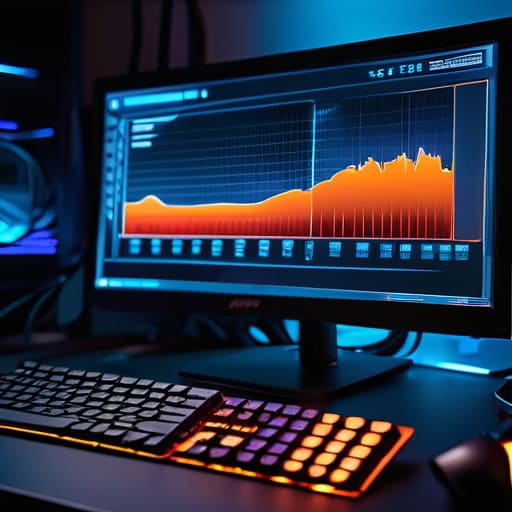
Stop guessing and start looking at the numbers. You can’t fix what you can’t see, and “it feels laggy” isn’t a metric. You need actual CPU temperature monitoring software running in the background while you play. I don’t care if you use HWInfo64 or MSI Afterburner—just pick one and get the data. If you’re running a heavy title and see your temps spiking into the 90s or 100s Celsius, you aren’t just “playing hard”; you’re hitting a wall.
The real giveaway isn’t just the heat, though; it’s the relationship between temperature and frequency. Watch your clock speeds. If your temps hit a certain ceiling and you see a sudden, sharp drop in MHz, that’s your hardware’s way of preventing a meltdown. This clock speed reduction is the direct result of your system trying to save itself. If these dips align perfectly with your frame drops, you’ve confirmed the issue. Once you see that pattern, you stop chasing software fixes and start looking at cooling system troubleshooting or, more likely, a messy thermal paste job.
Stop Guessing and Start Testing: 5 Ways to Pinpoint the Heat
- Run a stress test, not a benchmark. Use something like Prime95 or Cinebench to push your hardware to the limit. If your clock speeds tank the moment the load hits 100%, you aren’t dealing with a software bug; you’re hitting a thermal wall.
- Watch the clock speeds, not just the temperature. If your CPU hits 90°C and your frequency suddenly drops from 4.2GHz to 2.8GHz, that’s the throttling in action. The temperature tells you it’s hot; the frequency drop tells you it’s failing.
- Check your fan curves against the load. If your temps are spiking but your fans are still spinning at a lazy 20% RPM, your BIOS or control software is misconfigured. You need the fans to ramp up before the heat saturates the heatsink.
- Isolate the component. If your FPS is stable but your frame times are erratic (stuttering), check your GPU temps specifically. If the GPU is throttling, it’s often a physical issue like dust buildup in the shroud or dried-out thermal paste.
- Compare idle vs. load delta. If your PC idles at 50°C, you’re already in trouble. A healthy system should have a massive gap between idle and load. If that gap is narrow and your temps are high even when you’re just on the desktop, your cooling solution is essentially dead on arrival.
The Bottom Line
If your clock speeds are plummeting the moment your fans hit max RPM, you aren’t dealing with a software bug; you’re hitting a thermal wall.
Stop eyeballing your performance; use HWInfo or MSI Afterburner to actually see the delta between your target temp and your actual throttle point.
Don’t trust “gaming mode” bloatware to fix this—if the numbers show a spike and a sudden drop in frequency, you need to address the physical heat, not the settings.
Stop Guessing and Start Fixing
Look, diagnosing this isn’t rocket science, but it does require you to stop ignoring the obvious. If your frame rates are dipping mid-match or your clock speeds are flatlining while your fans sound like a jet engine, you aren’t dealing with a software bug—you’re dealing with a heat wall. You’ve checked the symptoms, you’ve run the monitoring software, and you’ve seen the numbers. If your temps are spiking into the 90s or 100s the second a load hits, you have your answer. Don’t let some forum post tell you it’s “just how the game runs.” If the data shows a massive drop in frequency the moment the temperature climbs, that is thermal throttling, plain and simple. It is a hardware limitation that no amount of “optimizing settings” is going to fix until you address the airflow or the thermal paste.
At the end of the day, your hardware is only as good as its ability to stay cool under pressure. I’ve spent too many hours losing ranked matches because my laptop decided to turn into a space heater right when the fight got intense. Don’t let your gear hold your skill hostage. Whether that means cleaning out the dust bunnies, repasting a dry chip, or finally investing in a decent cooling solution, take control of your setup. Stop playing through the stutter and start fixing the cause. Once you clear that thermal ceiling, you’ll actually see what your machine is capable of, and more importantly, you’ll stop losing games to things you could have prevented.