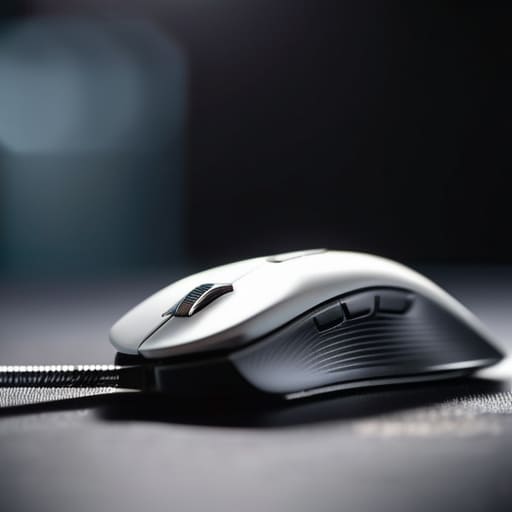

I was mid-clutch in a ranked match last Tuesday when my mouse decided it didn’t want to glide anymore; it just felt like I was dragging a brick across a piece of sandpaper. I spent twenty minutes blaming my mousepad and my own shaky aim before realizing the truth: my skates were shot. Most people think you need to drop two hundred bucks on a new peripheral when your sensor feels “off,” but they’re wrong. Learning how to replace mouse feet is the single most effective way to restore that factory-fresh glide without actually buying new hardware.
I’m not going to give you a lecture on the physics of PTFE or sell you some overpriced “pro” kit you don’t need. This guide is about the actual mechanics of the job. I’ll show you how to strip the old, crusty remnants off your sensor housing without snapping a plastic clip, and exactly how to align the new ones so you aren’t fighting a wobble mid-flick. If you want the direct steps to stop your mouse from feeling like it’s stuck in mud, you’re in the right place.
Table of Contents
Guide Overview
Tools & Supplies
- Small Phillips screwdriver (to open mouse if necessary)
- Hairdryer or Heat gun (to soften old adhesive)
- Replacement mouse skates/feet (1 set)
- Isopropyl alcohol (small amount for cleaning)
- Microfiber cloth or Q-tips (for residue removal)
Step-by-Step Instructions
- 1. Flip your mouse over and get a pair of tweezers or a small flathead screwdriver ready. You need to peel off the old skates, but don’t just yank them; you need to carefully lift the edges so you don’t scratch the plastic housing underneath. If they feel stuck, don’t force it and risk a gouge, just use a bit more leverage.
- 2. This is where most people mess up: you have to remove the adhesive residue. Even if the feet look gone, there’s a thin layer of old glue left behind that will ruin the glide of your new ones. Use a Q-tip soaked in high-percentage isopropyl alcohol to scrub the mounting area until it’s completely clean. If there’s even a tiny bit of grit left, your new feet will feel uneven and scratchy from minute one.
- 3. Check for the black foam or plastic spacers underneath the original feet. Some manufacturers hide extra layers of adhesive or structural supports there. If your new skates are thinner than the originals, you might need to leave those spacers in place, but if you’re going for a lower sensor height, you’ll want those cleared out entirely.
- 4. Take your new skates out of the packaging and look for the thin protective film on the top side. It’s easy to miss because it’s practically invisible, but if you don’t peel it off, you’re essentially gluing plastic to plastic and wondering why your mouse feels like it’s stuck in honey.
- 5. Align the new feet with the original cutouts. Don’t try to eyeball it from a distance; get your face down by the desk and ensure the edges are flush with the mouse body. If they’re even slightly crooked, you’re going to catch on your mousepad during a flick shot, and that’s a death sentence in competitive play.
- 6. Press down firmly on each corner of the new skates to ensure the adhesive has fully bonded. You don’t need to crush them, but you need to make sure there are no air bubbles trapped underneath. If there’s a gap, the skate will eventually lift, collect dust, and start dragging.
- 7. Give the mouse a few test swipes on your pad before you jump into a ranked match. If it feels smooth, you’re good. If it feels “crunchy,” you probably missed a piece of old adhesive or didn’t peel that microscopic film off the new skates. Fix it now, or it’ll haunt you mid-game.
Removing Old Mouse Feet Adhesive Without Ruining the Shell
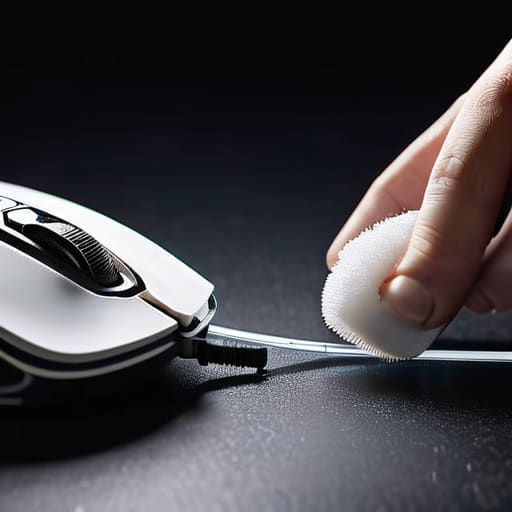
This is where most people screw up. You peel the old skates off, think you’re done, and then try to slap the new ones over the leftover gunk. Don’t do that. If you don’t get every single microscopic bit of residue gone, your new skates will sit unevenly, and you’ll end up with a wobble that ruins your aim. I’ve seen people try to scrape it off with a screwdriver—stop. You’ll gouge the plastic and end up with a permanent dent in your shell.
Instead, use a bit of high-percentage isopropyl alcohol on a Q-tip. You want to be aggressive with the cleaning but gentle on the plastic. Work in small circles until the surface feels completely smooth to the touch. While you’re down there, take a second to do some cleaning of the mouse sensor area too. If there’s dust or skin oil sitting in that lens, your tracking will feel jittery regardless of how expensive your new PTFE is. Once it’s dry and pristine, you’re actually ready for the ptfe mouse skates installation. If it feels tacky, you haven’t finished the job.
The Best Mouse Skates for Gaming and Ptfe Installation
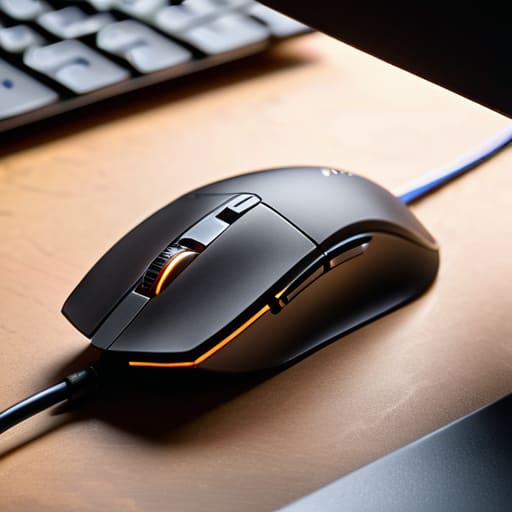
Don’t just grab the first cheap pack of stickers you see on Amazon because they promised “pro glide.” If you’re serious about gaming mouse glide improvement, stick to pure PTFE. Avoid anything labeled “glass” unless you want to feel like you’re playing on an ice rink with zero friction control—which is a nightmare for micro-adjustments in tactical shooters. I’ve cycled through enough brands to know that the difference between a premium skate and a generic one is the consistency of the thickness. If they aren’t uniform, your sensor is going to struggle with lift-off distance, and you’ll be chasing phantom tracking issues for weeks.
When you actually get to the ptfe mouse skates installation phase, pay attention to the corner radius. Most high-end skates come pre-cut, but if you’re using custom sheets, you need to round those edges. Sharp corners catch on your mousepad, creating that annoying “stutter” mid-flick that ruins a clean headshot. I keep a small file in my kit specifically for this. It’s a minor step, but it’s the difference between a smooth glide and a mouse that feels like it’s constantly tripping over itself.
Five Things People Mess Up While Swapping Skates
- Stop using a metal screwdriver to pry the old feet off. You aren’t repairing a car engine; you’re working with thin plastic. If you slip, you’re gouging the shell and you’ll never get that smooth glide back. Use a plastic spudger or an old credit card.
- Check for the hidden screws. Some mice have feet that sit directly over the screw holes. If you pull the feet and realize there’s a screw underneath, don’t panic—but if you try to force a screwdriver through the adhesive layer, you’re done.
- Clean the surface with 90% isopropyl alcohol, not just a dry cloth. If there is even a microscopic layer of old adhesive or skin oil left on the plastic, the new skates will lift at the edges within three days. I’ve seen it happen too many times.
- Don’t skip the “settling” period. New PTFE feels incredibly fast, almost twitchy, for the first hour. Don’t immediately go back to your spreadsheet and change your DPI because it feels “off.” Play for a session, let the friction normalize, then decide if you actually need to change anything.
- Watch your sensor height. If you buy skates that are even 0.2mm too thick, your Lift-Off Distance (LOD) will go to hell and your sensor will stop tracking properly. Always check the thickness specs against your current feet before you hit ‘buy’.
The Bottom Line
Don’t skip the cleaning phase; if you leave even a microscopic layer of old adhesive behind, your new skates will lift, feel uneven, and probably ruin the glide you just paid for.
Stick to 100% PTFE. I don’t care if glass skates are trending on TikTok—unless you specifically want a high-friction, high-maintenance setup, pure PTFE is the only way to get consistent, predictable movement.
Use a hair dryer on low heat if the adhesive is being stubborn, but don’t go overboard. You’re trying to soften glue, not melt your mouse shell into a puddle of plastic.
Stop Ignoring Your Hardware
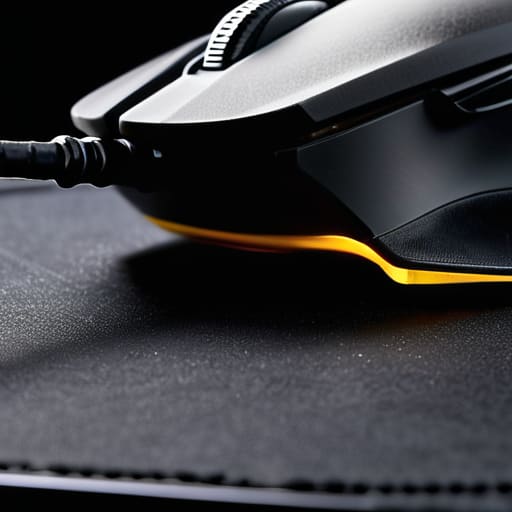
Look, it isn’t rocket science, but it is the difference between a clean flick and a missed shot. You’ve got the new PTFE skates, you’ve scraped the old adhesive residue off without melting the plastic, and you’ve actually taken the time to align them properly. Don’t be lazy and just slap them on crooked; if they aren’t level, you’re just introducing new problems to your sensor tracking. If your mouse feels like it’s gliding on ice instead of dragging through sand, you’ve done it right. It’s a small, annoying task, but skipping the prep work is exactly how you end up with a $150 mouse that feels like a brick.
At the end of the day, your gear shouldn’t be something you have to fight against during a clutch moment. I’ve spent way too many hours in ranked losing fights simply because my mouse felt sluggish, only to realize I was just being cheap with maintenance. Stop blaming your aim and start checking your hardware. Once you get these skates on, stop overthinking the settings and just get back into the game. You’ve fixed the friction; now go actually use the performance you just paid for.