
Stop wasting money on a high-refresh-rate secondary panel just because some tech YouTuber told you it makes your setup look “pro.” If you’re just using that extra screen to display a static wallpaper or a single Discord window that you never actually look at, you aren’t optimizing your space; you’re just adding visual clutter and a massive electricity bill. I spent my first two years of competitive play staring at a second monitor that was nothing but a glorified clock, and it did absolutely nothing to help my reaction time or my focus. Learning how to set up a second monitor usefully isn’t about how many pixels you can cram onto your desk, it’s about reducing the friction between your brain and the information you actually need.
I’m not here to give you a shopping list of expensive peripherals or tell you that a triple-monitor array is the secret to winning more matches. I’m going to show you how I actually organize my workspace so that my walkthroughs, frame data, and chat are exactly where they need to be without breaking my focus. No fluff, no hype—just the specific layouts and window management habits that actually work when you’re in the middle of a grind.
Table of Contents
The Truth About Monitor Placement for Productivity
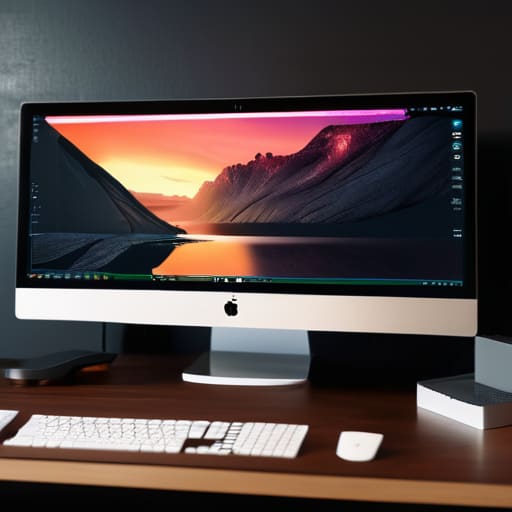
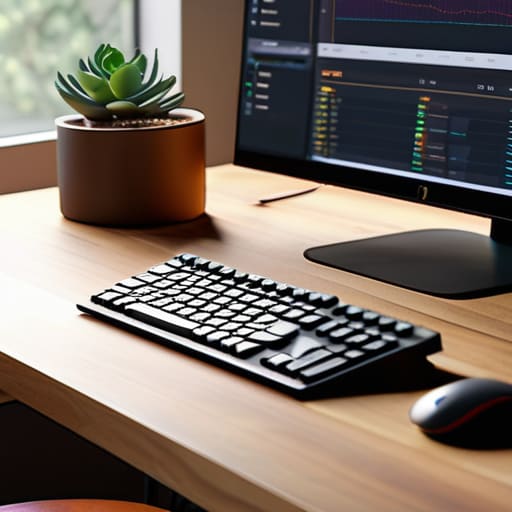
Most people just shove a second screen next to their main one and call it a day, but if you’re staring at a 45-degree angle for six hours, you’re going to have neck issues by Tuesday. If you’re actually trying to master multitasking with two screens without feeling like you’re in a cockpit, you need to decide on a primary. For me, that means the main monitor is dead center, and the second one is angled inward just enough to catch my peripheral vision. Don’t try to split your focus 50/50 between two identical panels unless you want to spend your entire session constantly readjusting your posture.
The goal of a proper dual monitor ergonomic setup isn’t just about visibility; it’s about minimizing the physical cost of your workflow. I’ve spent enough time in front of screens to know that even a two-inch misalignment makes a difference in how fast you can snap your eyes between a guide and the game. Keep the top third of both screens at eye level. If you’re looking down, you’re losing. It sounds pedantic, but it’s the difference between a setup that works and one that just adds clutter.
Dual Monitor Ergonomic Setup or Just Neck Pain
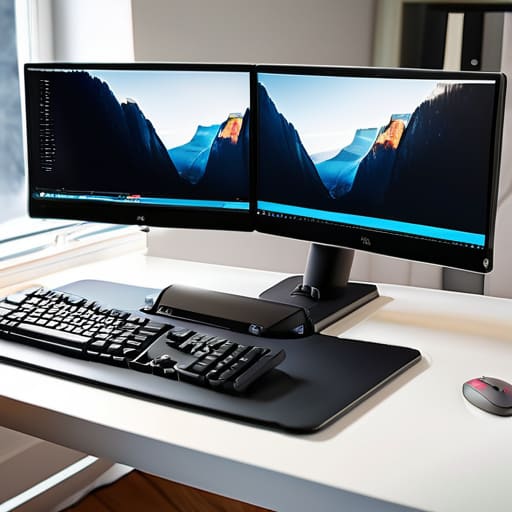
If you’re slapping two monitors side-by-side at eye level without thinking, you’re just asking for a tension headache by Tuesday. Most people think a dual monitor ergonomic setup just means having more pixels, but if you’re constantly twisting your neck to check a Discord chat or a guide, you’ve failed. You need to decide if one screen is your primary focus or if you’re actually splitting your attention 50/50. If you’re gaming or doing heavy lifting on one, that main display needs to be dead center. Don’t treat the second screen like a secondary thought; if it’s angled poorly, you’ll end up with permanent postural damage just to read a single line of text.
It’s also about how you handle the clutter. Multitasking with two screens is a trap if you don’t have a system. I spent months dragging windows around like a maniac before I realized that unorganized desktop real estate is just as bad as having no second screen at all. If you aren’t using some form of window management software to snap your windows into place, you’re wasting the very efficiency you bought the extra hardware for.
Stop Wasting Pixels: 5 Ways to Actually Use That Extra Screen
- Stop using the second monitor for “aesthetic” wallpapers or Spotify. If it isn’t displaying a Discord chat, a walkthrough, or a frame data spreadsheet, it’s just a glorified nightlight. If you aren’t looking at it every 30 seconds to gain an advantage or save time, turn it off.
- Match your refresh rates or deal with the stutter. If your main monitor is 144Hz and your side monitor is a 60Hz office relic, moving your mouse between them is going to feel like hitting a speed bump. It breaks your flow and messes with your muscle memory. If you can’t afford a second high-refresh panel, use the cheap one strictly for static info—no video, no scrolling.
- Use Window Management tools, not your mouse. Don’t waste time manually dragging windows to the corners like it’s 2005. Get PowerToys for Windows or a similar tiling manager. You need to be able to snap a guide to the left and your chat to the right with a single keystroke, not a clumsy drag-and-drop mid-match.
- Color calibration isn’t just for photographers. If your main monitor is color-accurate and your second one looks like a washed-out mess of blues and greys, your eyes are going to fatigue in an hour. At the very least, manually adjust the brightness and color temperature on the second panel so the jump between screens doesn’t feel like a physical slap to your retinas.
- The “Vertical Pivot” trick for long-form content. If you’re reading patch notes, long-form guides, or code, rotate that second monitor 90 degrees. Scrolling through a 5,000-word breakdown on a horizontal screen is a waste of time. Vertical orientation lets you see the whole context of a list or a strategy without constant flicking of the scroll wheel.
The Bottom Line
Stop centering both monitors if you’re only using one for the main task; pick a primary and push the secondary to the periphery to avoid constant, neck-straining head swivels.
A second screen is a tool, not a distraction—if it’s not displaying a guide, a Discord window, or a reference sheet, it’s just a high-priced way to look at a desktop wallpaper.
Match your refresh rates or accept the stutter; if your main is 144Hz and your side is a 60Hz office panel, your eyes are going to feel the mismatch every time you glance over.
Stop Guessing and Start Configuring
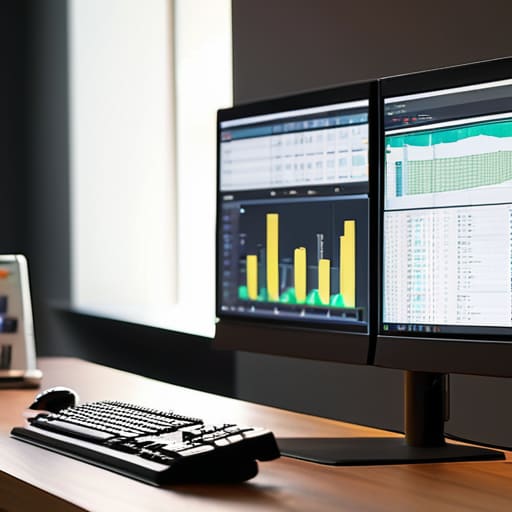
Look, there isn’t a magic setting that’s going to turn you into a pro, but there is a massive difference between a functional workspace and a cluttered mess. We’ve covered the basics: stop treating your second screen like a graveyard for random windows and start treating it as a dedicated utility. If it’s not holding your reference material, your Discord, or your walkthrough, it’s just a light source that’s eating your desk space. Fix your ergonomics so you aren’t fighting a tension headache by hour two, and ensure your monitor placement actually follows your eye line rather than forcing a permanent tilt in your neck. Precision matters, whether you’re tracking a boss pattern or just trying to keep a spreadsheet open without losing focus.
At the end of the day, your setup should serve the task, not the other way around. I’ve spent way too many hours staring at poorly positioned screens, thinking it was my skill level that was the problem when it was actually just my physical environment. Don’t fall for the hype of “aesthetic” setups that look great in a thumbnail but are impossible to actually use for a long session. Build a rig that works for your specific workflow, test it, and if it feels clunky, change it. The goal is efficiency, not decoration. Now go fix your desk and get back to the game.